
Q&A · WiFi Installation Dubai
How to Configure a Wi-Fi Router
Step-by-step guide to setting up a Wi-Fi router in Dubai - Etisalat / du modem, SSID, password, channel, and security at Azizi Technologies Dubai, setup.
4.9 · 645 reviewsTwo Dubai officesMon-Sat 9AM-7PM19 years in Dubai
Quick answer
- Head office
- Concord Tower, Media City
- Second office
- IT Center Building, Bur Dubai
- In Dubai since
- 2007
- Google rating
- 4.9 from 645 reviews
- Hours
- Mon-Sat 9AM-7PM
- Enquiries
- WhatsApp or use the quote form on this page
If that did not fix it
Configured correctly, coverage still poor
A router that is set up as the steps describe and still drops in the bedrooms is badly placed or fighting the ISP's own box. Etisalat and du routers keep broadcasting their own Wi-Fi after you add another, and two networks on overlapping channels slow each other down. Turn Wi-Fi off on the ISP unit, or set bridge mode, so one router does the job.
Walk the home with a phone showing signal strength and note where it falls below two bars; Dubai villa walls are concrete with steel and signal rarely crosses more than one. We survey, place access points and run cable where mesh falls short.
Set up in Dubai specifically
It starts at the Etisalat or du modem, and channel choice matters here.
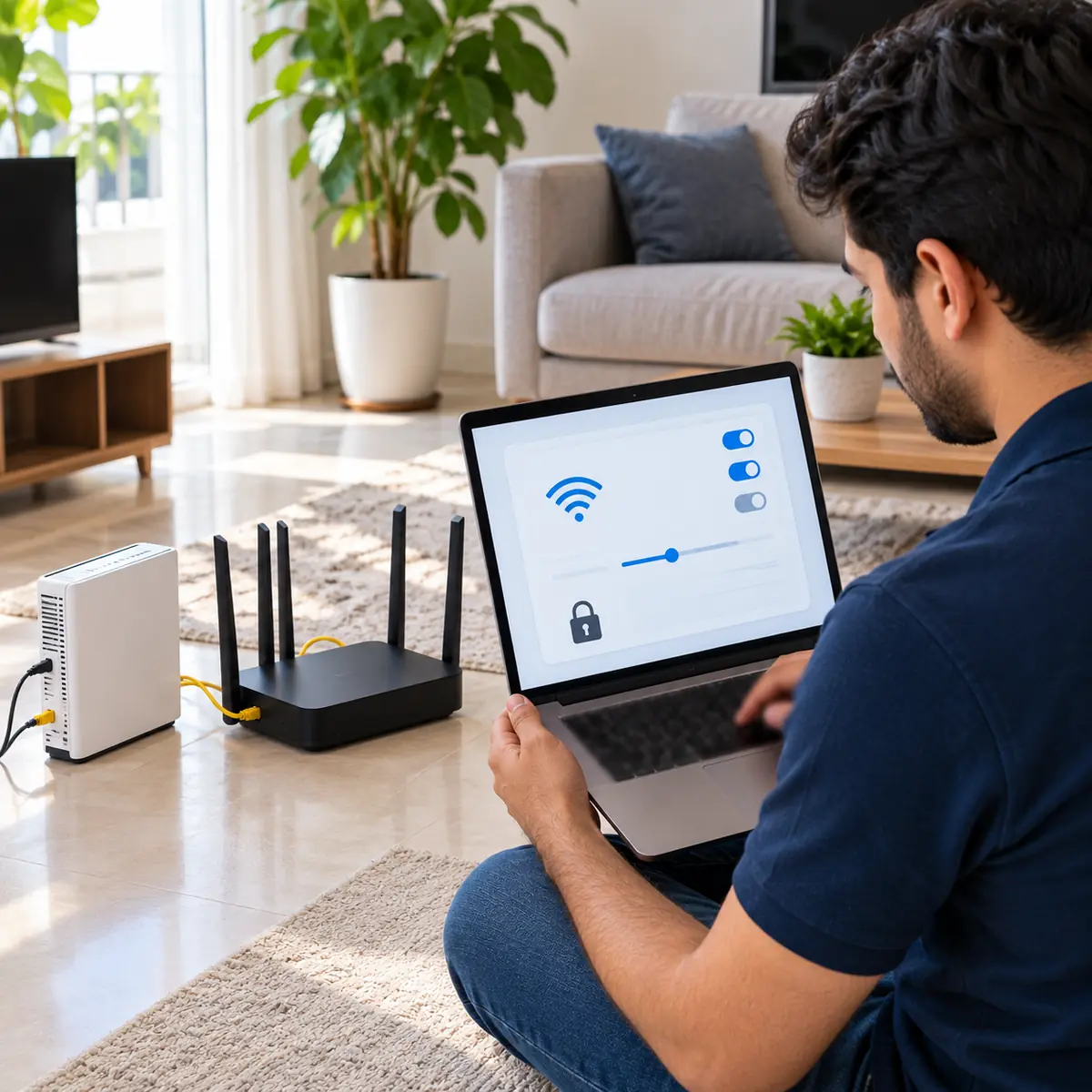
Connect by Ethernet, open the admin address in a browser and log in with the credentials on the sticker underneath. Set a distinct network name and a long WPA3 or WPA2 password. Then the step most people leave on automatic and should not: pick your channels manually. On 2.4 GHz use 1, 6 or 11, and on 5 GHz something well away from your neighbours. Dubai's towers are radio-dense enough that automatic channel selection frequently lands you on top of somebody else.
Finish with the housekeeping that gets skipped. Update the firmware from the admin panel. Turn off WPS and UPnP, both of which trade security for a convenience you will use once. Set a fast public DNS resolver. And decide deliberately whether to run band steering or split the bands into separate names — steering is tidier, but some devices handle it badly and a split network is the more reliable answer for them.
Automatic selection lands on a neighbour's channel more often than not here.
Both trade real security for convenience you will use approximately once.
The step most routers never get, and the one that closes known holes.
Band steering is neater; separate names are more reliable for older kit.
The full answer
New router or fixing a slow one? Here's the order to set everything up properly.
Configuring a Wi-Fi router in Dubai typically starts with your Etisalat or du modem. Step by step: 1) Connect via Ethernet to the router's LAN port and open 192.168.0.1 or 192.168.1.1 in a browser. 2) Log in with admin credentials (often on a sticker under the router). 3) Set a unique SSID and a 16+ character WPA3 / WPA2 password. 4) Set channel: 2.4 GHz channel 1, 6, or 11 (avoid auto); 5 GHz channel 36, 100, or 149. 5) Enable band steering or split SSIDs (separate names for 2.4 and 5 GHz if devices struggle). 6) Update firmware via the admin panel. 7) Disable WPS and UPnP for security. 8) Set DNS to 1.1.1.1 or 8.8.8.8 for faster lookups.
For villas or multi-storey homes, a single router is rarely enough - mesh systems (TP-Link Deco, Asus ZenWiFi, eero) cover larger spaces. We do professional WiFi installations across Dubai with site survey and tuning.
From the bench: what we see with this one
In most Dubai apartments the ONT sits in a cupboard by the front door, which is the worst place for Wi-Fi, so our first move on any call-out is to run a cable from there to the centre of the flat and put the router in the open. That one change often fixes what the owner thought was a router fault. In villas we run cable to each floor and put an access point at the top of the stairs.
The channel advice in the answer needs one addition for Dubai towers: with dozens of networks visible, 2.4 GHz is close to useless indoors and we steer every modern device to 5 GHz, keeping 2.4 for smart plugs and older printers only.
How Azizi Technologies handles this in Dubai
- Site survey for offices, villas and warehouses across Dubai before any quote.
- Written fixed quote before any work begins - no surprises, no hidden fees.
- Certified network engineers on every job - Ubiquiti, Cisco, Aruba and MikroTik trained.
- 90-day workmanship warranty on every installation.
- Coverage across Dubai including DIFC, JLT, Marina, Business Bay, Downtown, Media City, Jumeirah.
- Same-day callouts available for most Dubai districts.
Vendor neutral
Platforms We Support
The access-point and mesh platforms we survey for, install and support across Dubai homes, villas, offices and hotels.
- Ubiquiti UniFiU6 Pro, U7 Pro and UDM Pro for offices and large villas. Our most common commercial deployment.
- Cisco MerakiCloud-managed enterprise WiFi where the client needs Meraki dashboards and support contracts.
- ArubaInstant On and HPE Aruba access points for hotels and high-density offices.
- TP-Link Omada and DecoOmada for budget-conscious offices, Deco mesh for villas and apartments.
- Eero and Netgear OrbiConsumer mesh systems for same-day home WiFi fixes.
- Fortinet FortiGateThe firewall behind office and hotel WiFi, with guest networks and captive portals.
Finding us
Office 45, Concord Tower
Azizi Technologies operates two Dubai locations: the main workshop at Office 45, 10th floor of Concord Tower in Dubai Media City, and a second office at the IT Center Building in Bur Dubai. Concord Tower is a short walk from Dubai Internet City metro, with visitor parking on site (first 15 minutes free, then paid).
No appointment is needed during workshop hours, Mon-Sat 9AM-7PM, Fri break 12-2PM · Sun closed. Remote support runs from both offices, and on-site visits are scheduled from whichever is closer to you.
Where we work on site
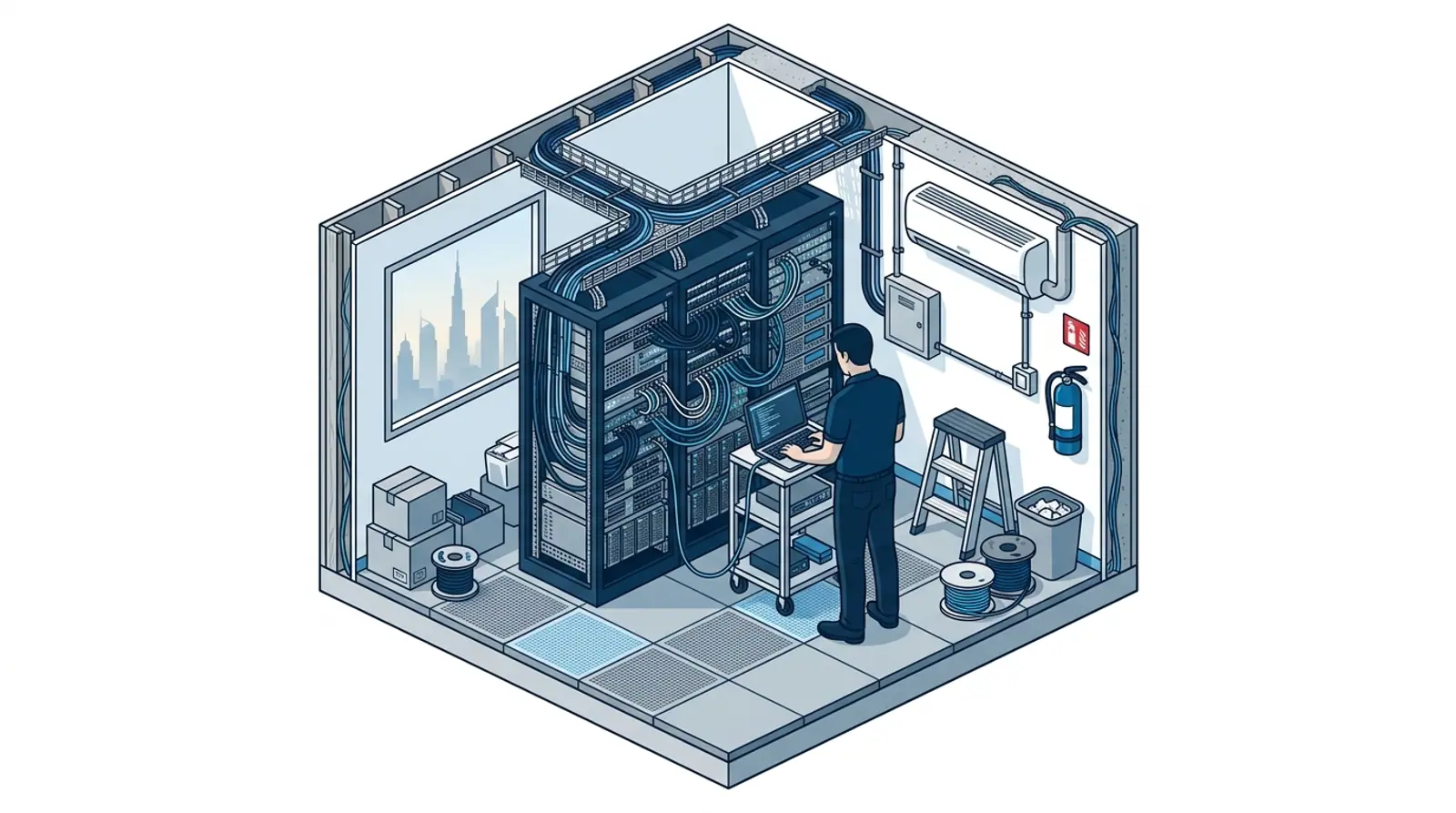
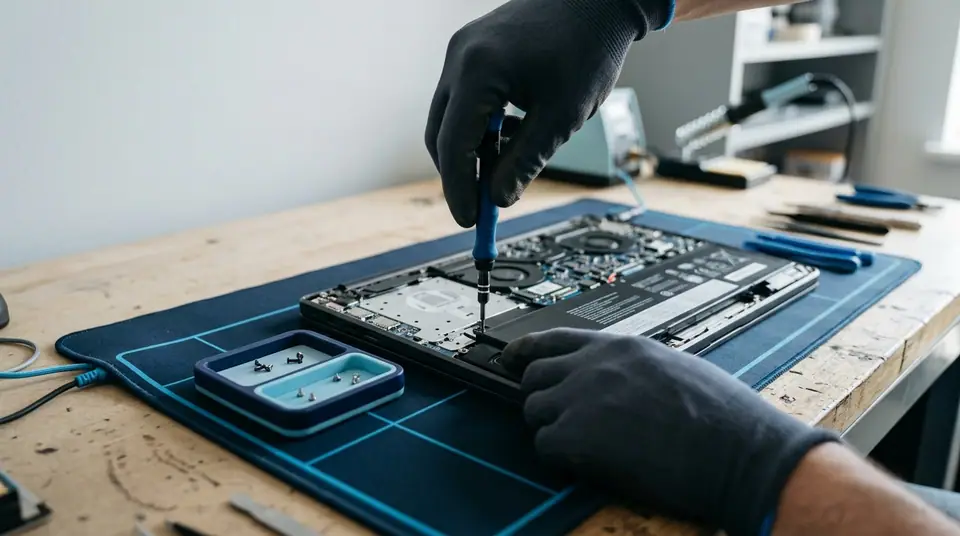
Dubai Media City, Internet City, Knowledge Park, Barsha Heights, Bur Dubai, Business Bay, JLT and the wider city from the two offices, with scheduled visits beyond Dubai.
How engagements run
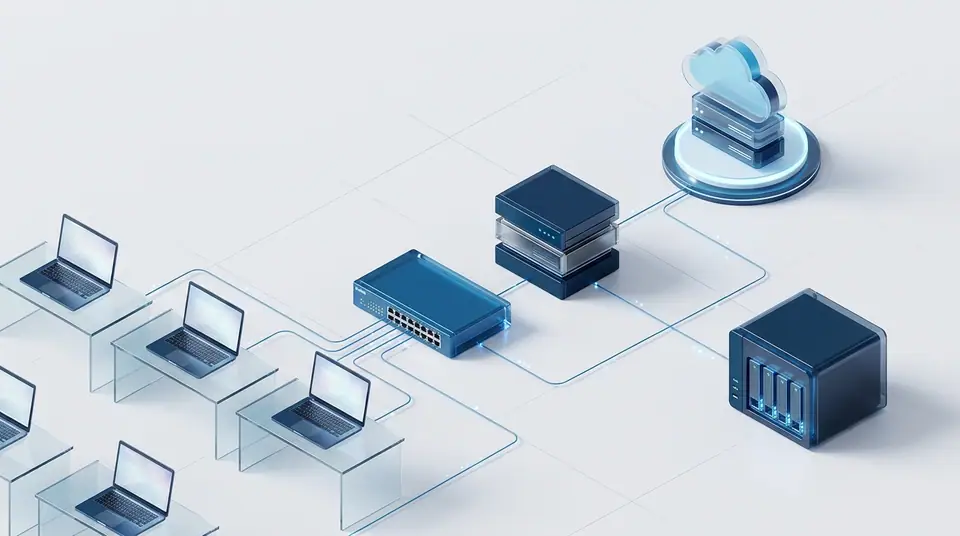
An assessment or site survey first, then a written scope and quote, then installation or onboarding, with ongoing support afterwards.
FAQ
Frequently asked questions
4 direct answers from the Azizi Technologies team.
Should I use the Etisalat or du router or buy my own?
Why is my Wi-Fi fast near the router and slow in the next room?
Is a mesh system or a wired access point better for a villa?
What are your workshop hours and locations?
Explore more from Azizi Technologies
Official sources
Non-competitor sources we use for standards, platform rules and regulatory context.
Talk to the WiFi Installation team
Next step
WiFi Installation Dubai
Still locked out of your Wi-Fi? Send us your router model and what you have already tried. Azizi Technologies has handled Dubai Wi-Fi since 2007, across Etisalat and du lines. We reply during workshop hours and tell you honestly whether it is a settings fix you can do yourself or needs a technician on site.

Two Dubai offices, both walk-in
Concord Tower in Media City and the IT Center Building in Bur Dubai, Monday to Saturday 9:00 to 19:00.Find our offices
IT AMC Dubai: one written SLA for the whole estate
IT annual maintenance contracts with response times in the contract, for offices with or without in-house IT.IT AMC in DubaiGet a quote
Tell us about the space
Four short steps, about a minute. Tell us the job once and we reply on WhatsApp with a price or a written scope, not a call-back.
4.9 stars from 645 Google reviews. Most enquiries answered within minutes during opening hours.
Read them on GoogleMeet the engineers
Real engineers. Real accountability.
Every job is handled by a certified engineer, the same people clients name in our Google reviews.
IT Support Lead
Usman K., thanked by name in our Google reviews
Microsoft Certified
10+ yrs experience
Senior Apple Repair Engineer
Shafeeq Ur Rehman, owner, on the Mac repair and micro-soldering bench
Apple-certified diagnostics · Board-level repair
12+ yrs experience
Network & Security Lead
Infrastructure and firewall team
Cisco CCNA
14+ yrs experience
Data Recovery Engineer
Drive imaging and board-level recovery bench
PC-3000 toolchain
9+ yrs experience
Finding us
Find your nearest Azizi Technologies workshop
Walk in to either Dubai branch for a free diagnosis, or book a visit. Visitor parking at Concord Tower (first 15 minutes free, then paid) (Dubai Media City).
Dubai Media City
Concord Tower, Office 45, 10th floor
Dubai Media City, Dubai
Find us in Concord Tower, Dubai Media City. Visitor parking at Concord Tower (first 15 minutes free, then paid).
Opening hours:
Mon to Sat: 9:00 to 19:00, Friday break 12:00 to 14:00
Sun: closed
Bur Dubai
G 58, IT Center Building, 21 21A Street
Bur Dubai, Dubai
Find us on the ground floor of the IT Center Building, with the walk-in repair counter.
Opening hours:
Mon to Sat: 9:00 to 19:00, Friday break 12:00 to 14:00
Sun: closed
Azizi Technologies
The numbers behind the team
- Google rating
- 4.9★
- Verified reviews
- 645
- In Dubai since 2007
- 19 years
- On-site response SLA
- 4 hours
- Remote first response
- 15 minutes
- Dubai walk-in offices
- 2