

Guide · WiFi Support Dubai
Wi-Fi Password Incorrect But It's Correct? 7 Fixes
Wi-Fi says the password is incorrect when it's correct? The 7 real causes, fixes for iPhone, Mac, Windows, Etisalat and du. Book a visit if stuck.
4.9 · 645 reviewsTwo Dubai officesMon-Sat 9AM-7PM19 years in Dubai
Quick answer
When Wi-Fi says the password is incorrect but the password is definitely correct, the password is almost never the actual problem. In nearly every case your device is replaying a saved profile that no longer matches the router, or it is failing the security handshake for a reason the error message does not explain.
In short
What this service changes
Three things first, the detail below.

Profile refresh
Forgetting the network deletes the stale profile the device keeps replaying.
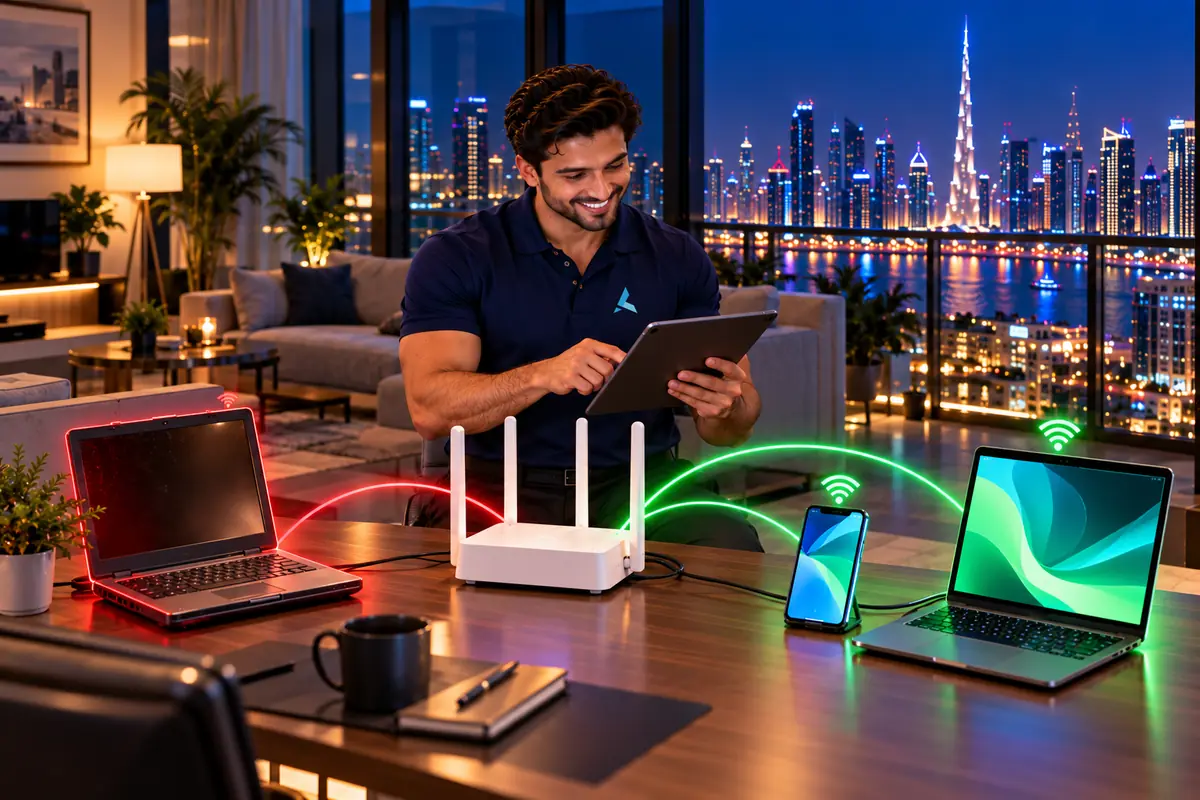
Security match
WPA2/WPA3 mixed mode lets older devices join a modern router.
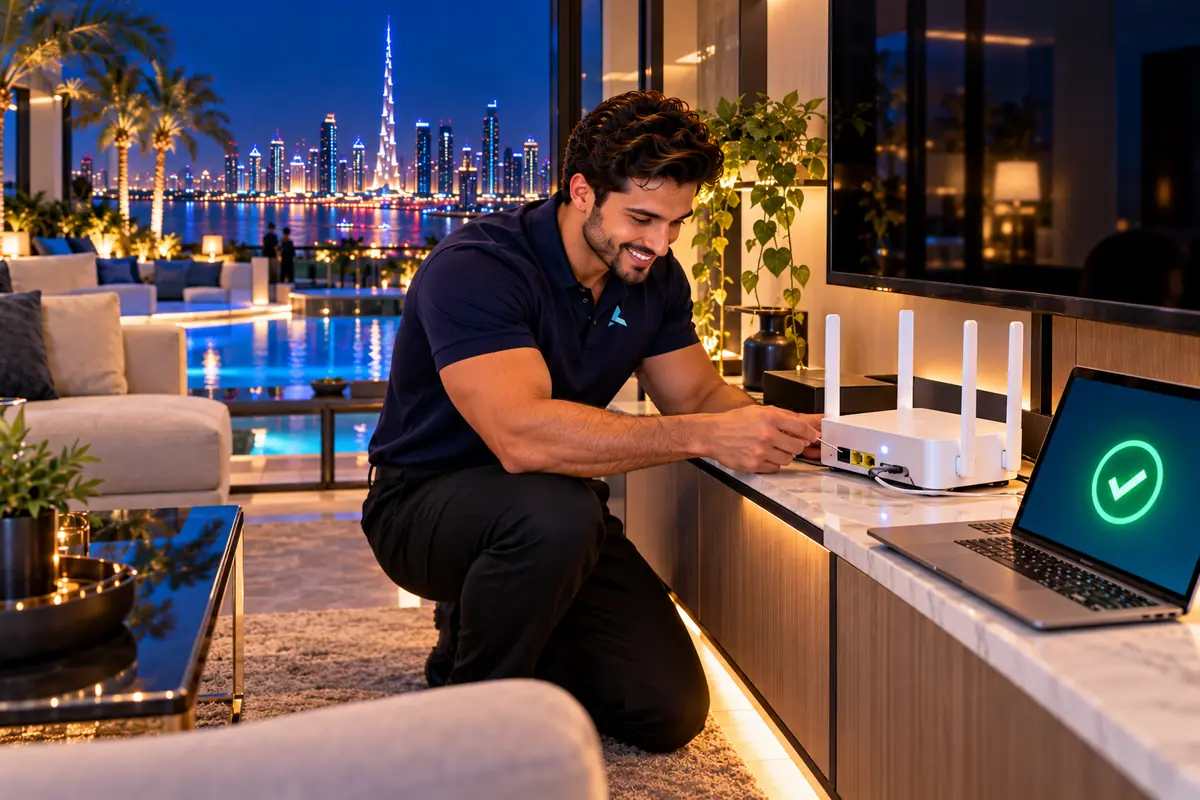
Router-side reset
One new key at the router fixes every device in the building.
Key takeaways
Key takeaways
- When Wi-Fi rejects a password you know is right, the saved network profile on the device is usually the problem, not the password.
- Forgetting the network and rejoining from scratch fixes more cases than retyping the key ever does.
- A WPA3-only router setting silently locks out older phones, printers and smart-home devices that only speak WPA2.
- If every device in the home fails at once, the fault is at the router, so change the key there rather than on each device.
- Etisalat and du routers each have a default admin login printed on the label, and the Wi-Fi key is changed from the Wireless page.
- A password with only letters and digits, 12 characters or more, avoids the hidden-character mistakes that cause repeat lockouts.

If that did not fix it
When the router still says no
Once every device has forgotten the network and the key has been retyped on the router, a failure that carries on is almost always the router's wireless radio or its firmware. The tell is a unit that accepts a cable but refuses every wireless client, or refuses only phones made in the last two years.
Note the router model from the sticker and whether the ISP swapped the ONT recently, and send that on WhatsApp. A dead radio on an Etisalat or du unit is replaced by the ISP under the line contract; a third-party router or mesh node we replace on site and move the settings across.
What is actually failing
The password check is a handshake, and the handshake can fail for reasons the error never names.
Profile refresh
Forgetting the network deletes the stale profile the device keeps replaying.
Security match
WPA2/WPA3 mixed mode lets older devices join a modern router.
Router-side reset
One new key at the router fixes every device in the building.
Capacity
Consumer routers cap clients; a mesh or access point lifts the limit.
When a phone joins Wi-Fi it does not send the password. It proves it knows the key through a four-way handshake with the router. If any step of that exchange fails, the device reports "incorrect password" because that is the only message the operating system has for it.
That is why a correct key can be rejected. A stale saved profile, a security mode the device does not support, MAC filtering, a full client table on the router or a mismatched band all break the handshake without the password being wrong at all.

The full guide
Your Wi-Fi keeps rejecting a password you know is right. Here is why that happens, and how to fix it on the device or change it on the router.
When Wi-Fi says the password is incorrect but the password is definitely correct, the password is almost never the actual problem. In nearly every case your device is replaying a saved profile that no longer matches the router, or it is failing the security handshake for a reason the error message does not explain. The most common causes are a cached old password after a router reset or ISP swap, a WPA2 and WPA3 security mismatch, a hidden character or trailing space in the key, band steering pushing the device between the 2.4 GHz and 5 GHz radios, MAC address filtering silently rejecting the device, or a router that has simply run out of client slots.
The fastest fix is to make the device forget the network and rejoin from scratch rather than retyping the password into the same failing profile. If the whole house or office is affected instead of one device, the problem sits at the router and you should change the key there. Both routes are covered step by step below.
Why Wi-Fi says the password is wrong when it isn't
The "incorrect password" message is a catch-all. Devices show it for almost any failed authentication, including several that have nothing to do with the password itself. Work down this table before you change anything on the router.
| Cause | What you'll notice | Fix |
|---|---|---|
| Cached old password | Started after a router reset, reboot or ISP engineer visit | Forget the network on the device and rejoin |
| WPA2 and WPA3 mismatch | New phone or laptop fails, older devices connect fine | Set the router to WPA2/WPA3 mixed mode |
| Hidden character in the key | Fails on every device, including new ones | Retype the key with no spaces, no smart quotes |
| Band steering | Connects, drops, then reports a wrong password | Split the 2.4 GHz and 5 GHz names temporarily |
| MAC address filtering | One specific device fails, everything else works | Add the device MAC to the router allow list |
| Router client limit reached | Newest device to join is the one that fails | Reboot the router or remove idle devices |
| Two networks with the same name | Fails in one room, works in another | Rename the weaker access point or extender |
If more than one device stopped working at the same moment, skip the device fixes and go straight to the router section. A single failing device is almost always a saved-profile problem.
Fix it on iPhone and iPad
iOS keeps the old key in the saved network profile, so retyping the password on the same profile changes nothing. You have to remove the profile first.
- 1Open Settings, then Wi-Fi.
- 2Tap the small blue info icon next to the network name.
- 3Tap Forget This Network, then confirm.
- 4Turn Wi-Fi off, wait about ten seconds, then turn it back on.
- 5Select the network and type the password again.
Still refused? Go to Settings, General, Transfer or Reset iPhone, Reset, then Reset Network Settings. That clears every saved Wi-Fi profile and fixes the stubborn cases. You will need to re-enter passwords for your other networks afterwards, so have them to hand.
Fix it on a Mac
macOS stores Wi-Fi keys in the keychain as well as in the network profile, which is why a Mac can keep failing after you have already forgotten the network once.
- 1Open System Settings, then Wi-Fi.
- 2Click Details next to the network, then click Forget This Network.
- 3Open Keychain Access (or Passwords in System Settings on newer macOS), search the network name, and delete the saved AirPort network password entry.
- 4Restart the Mac, then rejoin the network.
On older macOS the same setting lives under System Preferences, Network, Wi-Fi, Advanced, where you select the network and click the minus button to remove it.
Fix it on Windows 11 and Windows 10
- 1Open Settings, then Network and Internet, then Wi-Fi.
- 2Click Manage known networks.
- 3Select the network and click Forget.
- 4Reconnect and enter the password.
If Windows still refuses, open Device Manager, expand Network adapters, right-click the wireless adapter and choose Uninstall device. Restart and Windows reinstalls the driver clean. A stale wireless driver produces exactly the same misleading password error.
Fix it on Android
Menu names vary by manufacturer, but the path is broadly the same on Samsung, Xiaomi, Google Pixel, Huawei and Oppo.
- 1Open Settings, then Connections or Network and Internet, then Wi-Fi.
- 2Long-press the network name, or tap the gear icon next to it.
- 3Choose Forget network.
- 4Rejoin and enter the password.
On Android, also check that Randomised MAC is not fighting a router allow list. Under the network's settings, switch Privacy from Use randomised MAC to Use device MAC, then rejoin. This single setting causes a lot of otherwise unexplainable password failures on office and hotel networks.
Change the Wi-Fi password on an Etisalat (e&) router
If you want to change the key rather than repair one device, the easiest route on an Etisalat eLife line is the e& UAE app, which avoids the admin panel entirely.
- 1Open the e& UAE app and sign in with the account holder's number.
- 2Go to your eLife or home internet service, then the Wi-Fi or Manage Wi-Fi section.
- 3Change the network name or password, then save. The router applies it within a minute or so.
To use the admin panel instead: connect to the router by Wi-Fi or Ethernet cable, open a browser and try 192.168.1.1 first, then 192.168.100.1. Log in with the admin username and password printed on the sticker on the underside of the router, not your Wi-Fi password. Open the WLAN or Wireless section, find the WPA key or Pre-Shared Key field, enter the new password, and save. Every device in the property will disconnect and needs the new key.
Change the Wi-Fi password on a du router
du Home lines follow the same pattern. The du app is the quickest path, with the admin panel as the fallback.
- 1Open the du app, sign in, and select your home internet service.
- 2Open the Wi-Fi settings section and edit the network name or password.
- 3Save, then rejoin every device using the new key.
For the admin panel, connect to the router and open 192.168.1.1 in a browser. Some du units use 192.168.0.1 instead, so try that if the first address does not load. Sign in with the admin credentials on the router sticker, open the WLAN or Wireless Security page, set a new WPA2 or WPA3 password, and save. If you have both a 2.4 GHz and a 5 GHz network listed, change the password on both so devices do not fall back to the old key on one band.
Choosing a password that won't cause this again
- Use 12 to 20 characters. Long beats complicated for Wi-Fi keys.
- Stick to plain letters and numbers. Avoid quotes, backslashes and currency symbols, which some smart TVs and printers cannot accept.
- Never start or end with a space. A trailing space is invisible and is one of the most common causes of this exact error.
- Avoid characters that look alike, such as capital I, lowercase l and the digit 1.
- Set the router to WPA2/WPA3 mixed mode rather than WPA3 only, so older devices can still authenticate.
- Write the new key on the router sticker so the next person is not locked out.
When it isn't the password at all
If you have forgotten the network on every device, changed the key on the router, and it still fails, the fault is usually hardware or line side.
- The router's wireless radio has partially failed, so it accepts wired connections but rejects wireless authentication.
- The ONT or modem was replaced during a service visit and the network name was recreated with a different key.
- An old extender, mesh node or repeater in the property is still broadcasting the same network name with the old password.
- The router's firmware is out of date, which causes handshake failures with newer phones and laptops.
- The line has an active fault and the router never fully authenticates to the ISP.
This is the point to stop swapping settings. We cover this across Dubai, including Media City, Marina, JLT, Business Bay, Downtown, Bur Dubai, Deira, Jumeirah and Al Barsha, and most call-outs are resolved in a single visit.
How Azizi Technologies handles this in Dubai
- Site survey for offices, villas and warehouses across Dubai before any quote.
- Written fixed quote before any work begins - no surprises, no hidden fees.
- Certified network engineers on every job - Ubiquiti, Cisco, Aruba and MikroTik trained.
- 90-day workmanship warranty on every installation.
- Coverage across Dubai including DIFC, JLT, Marina, Business Bay, Downtown, Media City, Jumeirah.
- Same-day callouts available for most Dubai districts.
Fix it yourself or call an engineer
Fixing a rejected Wi-Fi password at home vs an on-site visit
Most single-device cases are a five-minute fix. The router-side cases are where a visit earns its place.
| What matters | Do it yourself | Azizi Technologies on site |
|---|---|---|
| One device rejected, others fine | Forget the network and rejoin. Usually solved. | Not needed. |
| Every device rejected after a router reset | Log in to the router and set a new key. | We reset, re-key and reconnect every device, including printers and cameras. |
| Router admin password unknown | Factory reset, then reconfigure from the label. | We recover or reset without losing the ISP settings. |
| Old devices fail after a new router | Switch security from WPA3-only to WPA2/WPA3 mixed. | We set band, security and channel so old and new devices coexist. |
| Villa or office with many access points | Each point must carry the same key and security. | Mesh or controller-managed WiFi, keyed once, tested in every room. |
| Time | Five minutes to an evening. | Same-day visit across Dubai. |
Finding us
Office 45, Concord Tower
You will find our main workshop at Office 45, 10th floor, Concord Tower, in Dubai Media City, with a second Azizi Technologies location at the IT Center Building in Bur Dubai. Concord Tower sits by Dubai Internet City metro, and has visitor parking if you drive in (first 15 minutes free, then paid).
No appointment is needed during workshop hours, Mon-Sat 9AM-7PM, Fri break 12-2PM · Sun closed. Remote support runs from both offices, and on-site visits are scheduled from whichever is closer to you.

Where we work on site
Dubai Media City, Internet City, Knowledge Park, Barsha Heights, Bur Dubai, Business Bay, JLT and the wider city from the two offices, with scheduled visits beyond Dubai.

How engagements run
An assessment or site survey first, then a written scope and quote, then installation or onboarding, with ongoing support afterwards.
FAQ
Frequently asked questions
12 direct answers from the Azizi Technologies team.
Why does my phone say incorrect password after I changed the Wi-Fi password?
Can a router be set to reject a correct password?
Why does my Wi-Fi say incorrect password when the password is correct?
How do I change my Wi-Fi password in Dubai?
What is the default admin password for an Etisalat or du router?
Why does only one device say the password is wrong?
Do I need to change the password on both 2.4 GHz and 5 GHz?
Can Azizi Technologies fix this on site?
Why does a new phone fail on Wi-Fi that older devices still use?
Does a factory reset of the router fix a key that keeps being rejected?
Will changing the Wi-Fi password knock my cameras and smart TV offline?
What are your workshop hours and locations?
Standards and official sources
Authoritative references
We align delivery with official guidance where it applies. These are non-competitor sources we use for standards, platform rules and regulatory context.
Explore More Services
Other services we run across Dubai and the UAE.
Talk to the WiFi Support team
WiFi Support Dubai: request a quote
Still locked out of your Wi-Fi? Send us your router model and what you have already tried. Azizi Technologies has handled Dubai Wi-Fi since 2007, across Etisalat and du lines. We reply during workshop hours and tell you honestly whether it is a settings fix you can do yourself or needs a technician on site.


Two Dubai offices, both walk-in
Concord Tower in Media City and the IT Center Building in Bur Dubai, Monday to Saturday 9:00 to 19:00.
Find our offices
IT AMC Dubai: one written SLA for the whole estate
IT annual maintenance contracts with response times in the contract, for offices with or without in-house IT.
IT AMC in DubaiGet a quote
Tell us about the space
Four short steps, about a minute. Tell us the job once and we reply on WhatsApp with a price or a written scope, not a call-back.
4.9 stars from 645 Google reviews. Most enquiries answered within minutes during opening hours.
Read them on GoogleMeet the engineers
Real engineers. Real accountability.
Every job is handled by a certified engineer, the same people clients name in our Google reviews.
IT Support Lead
Usman K., thanked by name in our Google reviews
Microsoft Certified
10+ yrs experience
Senior Apple Repair Engineer
Shafeeq Ur Rehman, owner, on the Mac repair and micro-soldering bench
Apple-certified diagnostics · Board-level repair
12+ yrs experience
Network & Security Lead
Infrastructure and firewall team
Cisco CCNA
14+ yrs experience
Data Recovery Engineer
Drive imaging and board-level recovery bench
PC-3000 toolchain
9+ yrs experience
Find your nearest Azizi Technologies workshop
Walk in to either Dubai branch for a free diagnosis, or book a visit. Visitor parking at Concord Tower (first 15 minutes free, then paid) (Dubai Media City).
Dubai Media City
Concord Tower, Office 45, 10th Floor. Mon-Sat 09:00-19:00 (Fri break 12:00-14:00). Closed Sunday.
Bur Dubai
G 58, IT Center Building, 21 21A Street. Mon-Sat 09:00-19:00 (Fri break 12:00-14:00). Closed Sunday.
Azizi Technologies
The numbers behind the team
- Google rating
- 4.9★
- Verified reviews
- 645
- In Dubai since 2007
- 19 years
- On-site response SLA
- 4 hours
- Remote first response
- 15 minutes
- Dubai walk-in offices
- 2